
Adding a website to your phone’s home screen creates a quick shortcut that looks and acts just like an app icon. Here is exactly how to set this up on both iPhone and Android devices.
iPhone (Using Safari)
1.Open Safari:
Launch the Safari app and navigate to the exact website you want to save.
2.Tap the Share button:
Look at the bottom of your screen for a square icon with an arrow pointing up. Tap it to open the Share menu.
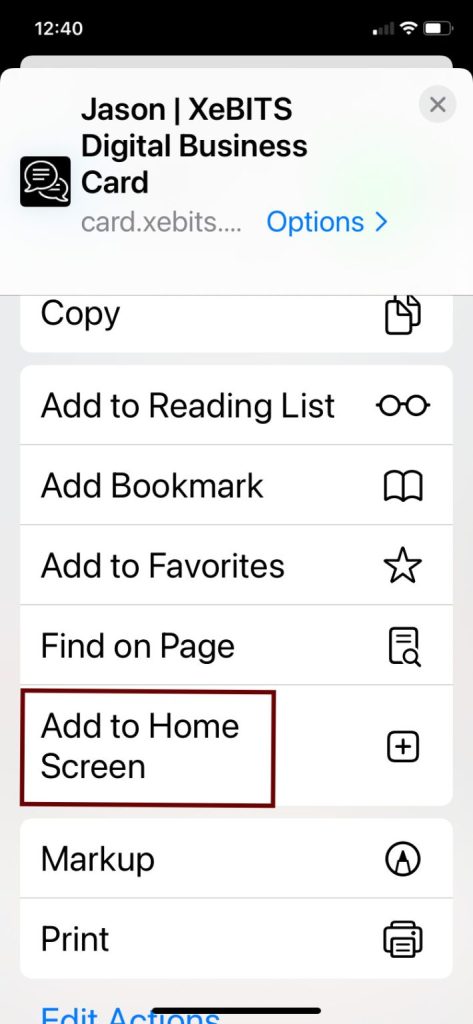
3.Select ‘Add to Home Screen’:
Scroll down the list of options until you see Add to Home Screen (look for the square icon with a plus sign inside) and tap it.
4.Name your shortcut:
Type in a short, recognizable name for the icon. Tap Add in the top right corner. The icon will immediately appear on your home screen.

Android (Using Google Chrome)
1.Open Chrome:
Launch the Google Chrome app and navigate to the website you want to save.
2.Open the Menu:
Tap the three vertical dots in the top right corner of the screen next to the web address bar.
3.Select ‘Add to Home screen’:
Scroll down the menu list and tap on Add to Home screen.
4.Confirm the shortcut:
A pop-up will appear letting you rename the shortcut. Tap Add. You may then be asked to tap Add to Home screen one more time, or you can touch and hold the icon to place it manually.